
Client Portal
The Client Portal is the public, token-based page your clients can access to review your subscriptions, receipts, and stored payment methods. Your clients can access this page by clicking on the Client Portal link in their automated notification emails.
Subscriptions
This is the default tab. It lists your client's subscriptions in a sortable table with Amount, Interval, Status, Date Started, Date Ended, and Actions columns, sorted by start date with the newest first. On desktop and tablet, the table includes the shared Search, Export, Customize, and Filters controls. On mobile devices (screens below 768px), each subscription appears as a stacked card showing the started and ended dates, amount, status, and an Edit action instead of a table. If your client does not have any subscriptions with you, the tab shows "No subscriptions found."
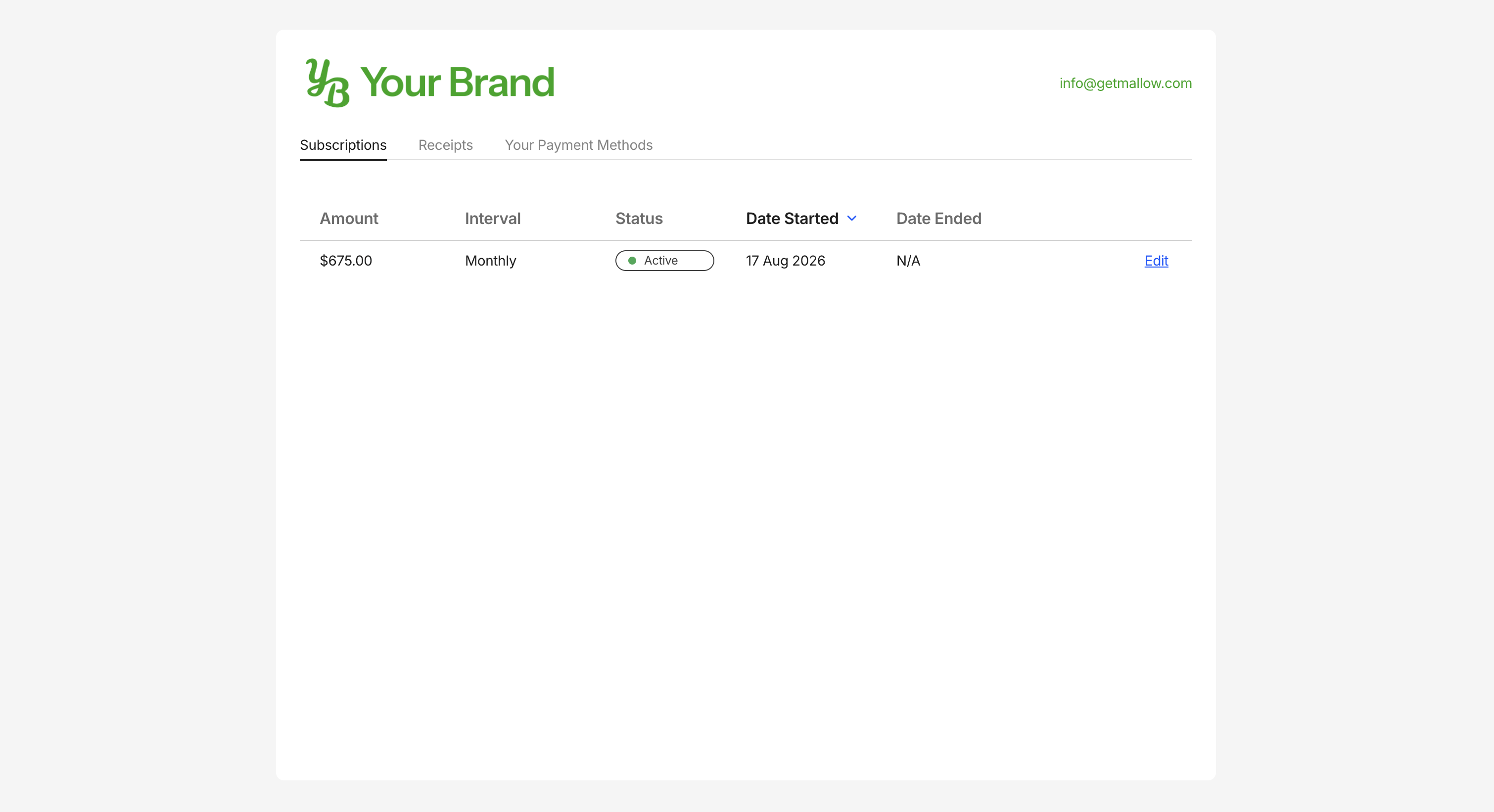
Cancel a subscription
Your client can cancel an active subscription from this tab. Cancellation is immediate and stops future payments.
Open the Edit control on the subscription row or card.
Select Cancel Subscription.
Confirm in the dialog by choosing Yes, cancel subscription.
After confirming, the portal shows a "Subscription Canceled" message and you will be notified of the change. The Edit control is disabled for subscriptions that are inactive, paused, or already cancelled. Your client cannot pause, resume, add, or edit a subscription from this tab.
Receipts
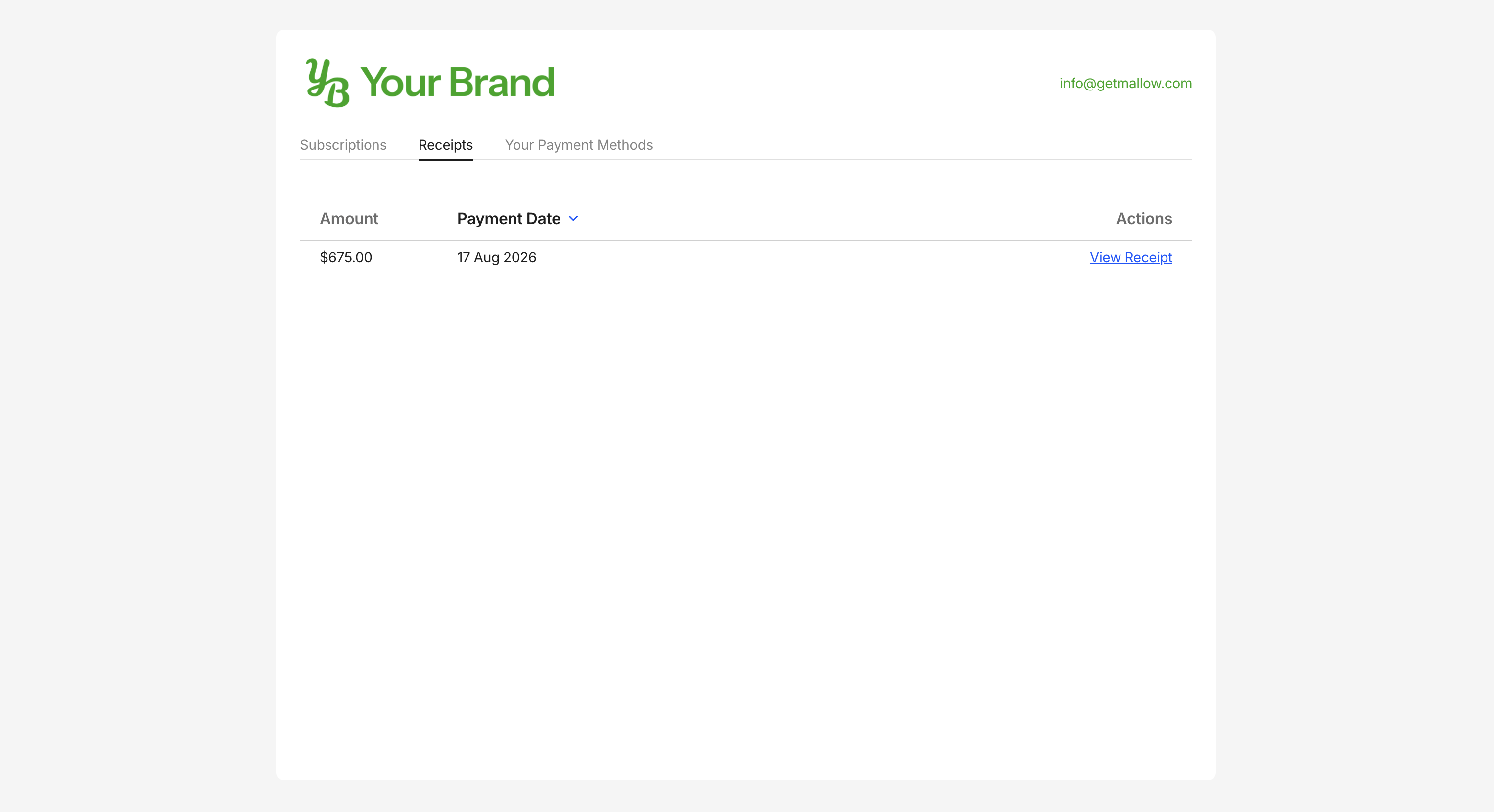
This tab lists all completed payments sorted by payment date with the newest first. The table shows Amount, Payment Date, and Actions columns, and your client can sort by amount or payment date. Canadian-dollar amounts are shown with a (CAD) prefix. On desktop and tablet, the table includes the shared Search, Export, Customize, and Filters controls. On mobile devices, each receipt appears as a stacked card showing the paid date and amount.
To see a receipt, click View Receipt on a row or card. It opens the receipt in a new browser tab. If no payments have been completed, the tab shows "No payment receipts found."
Your Payment Methods
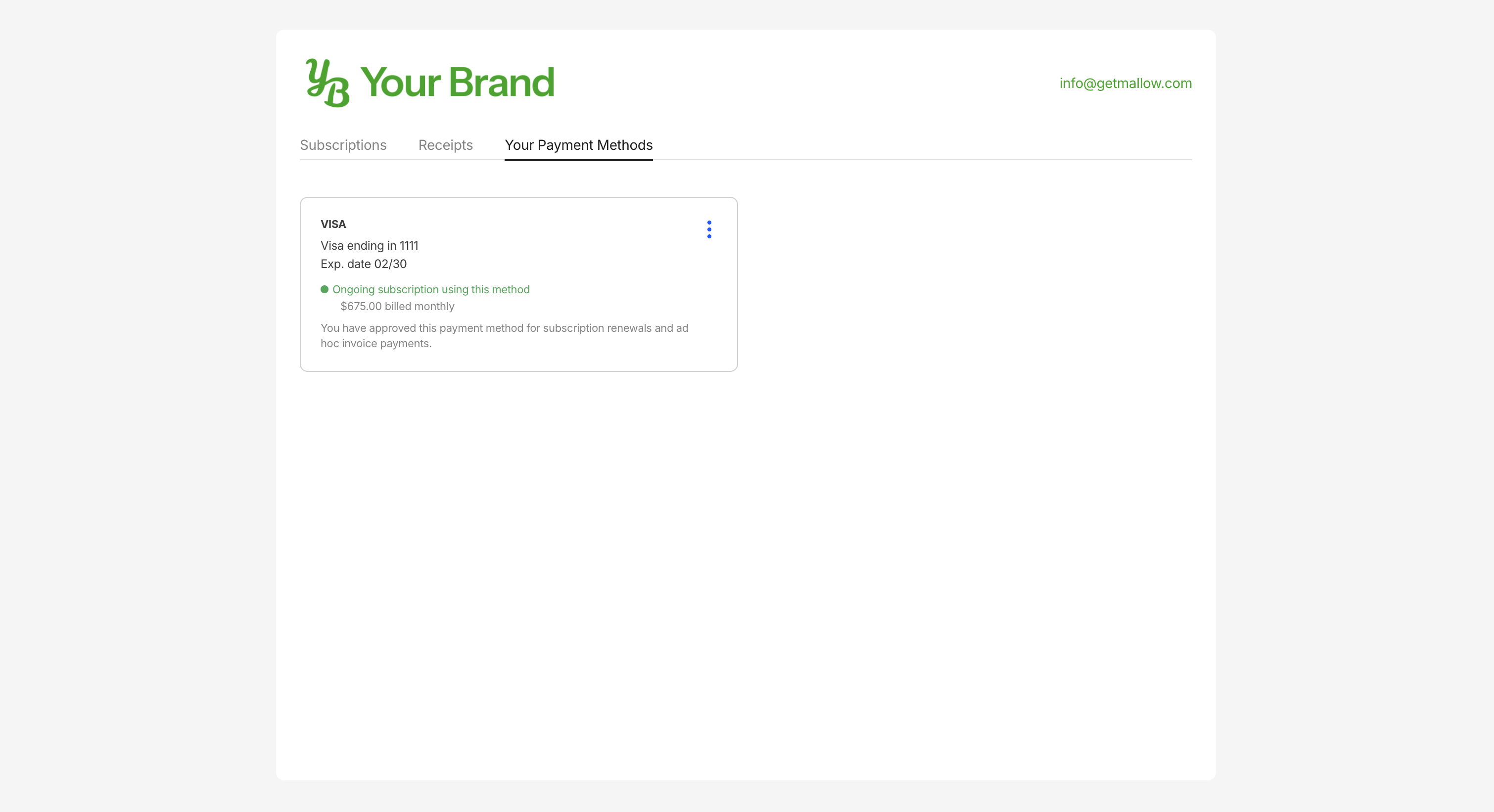
This tab lists the cards and bank accounts your client has stored on file. Cards show the card brand, a masked card number, and an expiration date, with an Expired label once the date has passed. Bank accounts show the account details in a similar fashion. If your client has no no stored payment methods, the tab shows "No payment methods on file."
When an active subscription uses one of the payment methods from this list, it is noted in the card with a note saying, "Ongoing subscription using this method" with a billing line such as "$100.00 billed monthly".
Delete a payment method
To delete a stored payment method, click on the 3 Dot menu and select Delete payment method, then confirm in the next popup modal.
Deleting a payment method associated with an active subscription will cancel that subscription, which can lead to loss of service. The confirmation dialog warns you when one or more active subscriptions use the payment method.
Respond to a payment-method request
When a request to store a payment method has been made, your client responds on a separate request page rather than inside the Client Portal. The page shows the request with an option to Reject Request or Proceed.
Reject Request opens a form where your client can share why they are rejecting the request, then submit the rejection.
Proceed takes your client to a page to approve an eligible existing payment method or add a new one.
Adding a payment method requires your client to check a box to grant authorization to charge their payment method for outstanding balances.
Limits of the portal
The portal is for reviewing and making the changes above; it is not a full account dashboard. Your client cannot add a payment method from the Your Payment Methods tab. The shared table controls on the Subscriptions and Receipts tabs are available on tablet and desktop; mobile devices show cards without those controls.
Related articles:
Store payment methods on file — how you request a payment method from a client.
Invoice types — how subscription and recurring invoices work.
Why does my subscription say Date TBD? — the subscription date shown before your first payment.