
Install Mallow on your phone
You can add Mallow to your phone’s home screen! Thanks to our Progressive Web App (PWA), Mallow works on iPhone and Android as if it were a downloaded app.
Below are instructions for adding Mallow to your iPhone or your Android device.
Add Mallow on iPhone or iPad
Open Mallow in Safari
Visit portal.getmallow.com to sign into your Mallow portal.
Tap the ellipsis (⋯) menu icon in the bottom-right corner, then select Share.
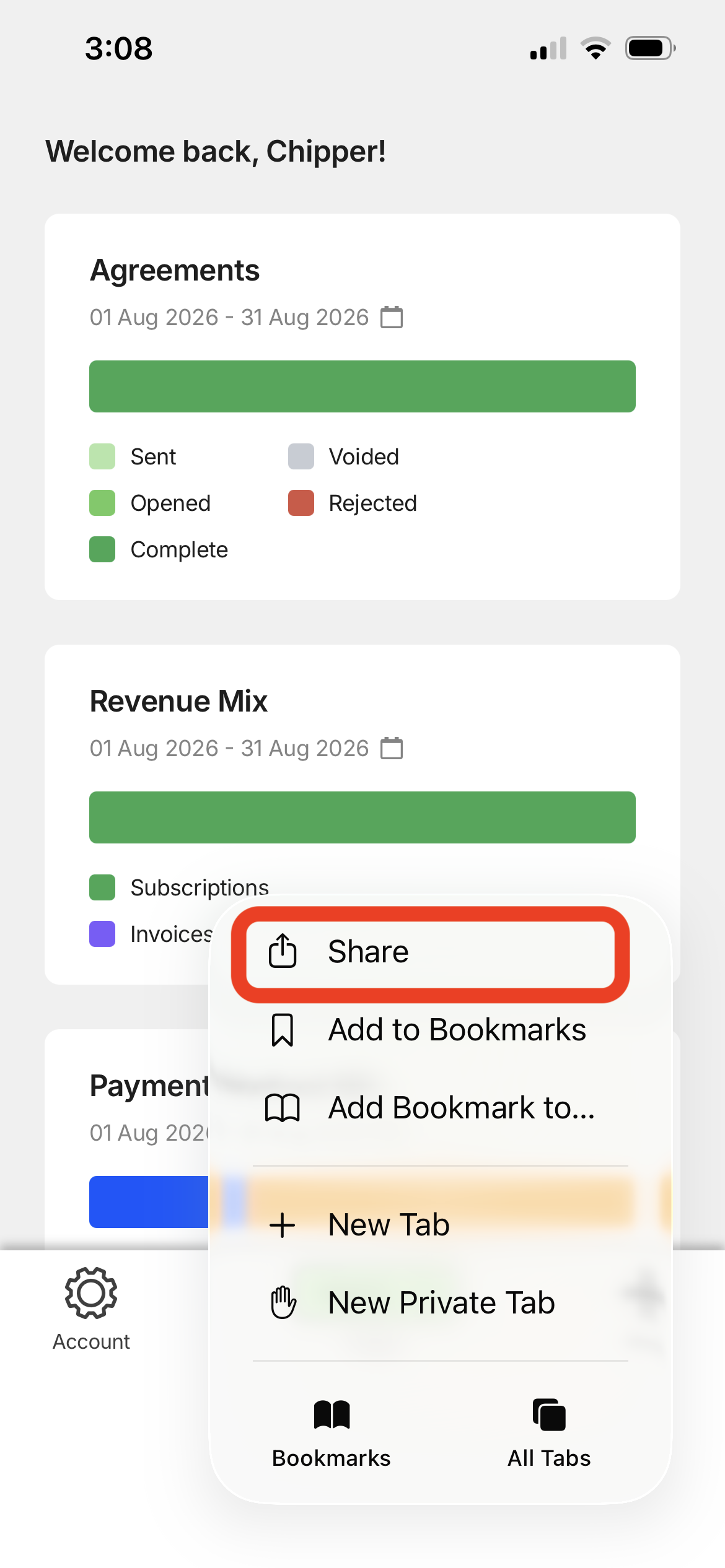
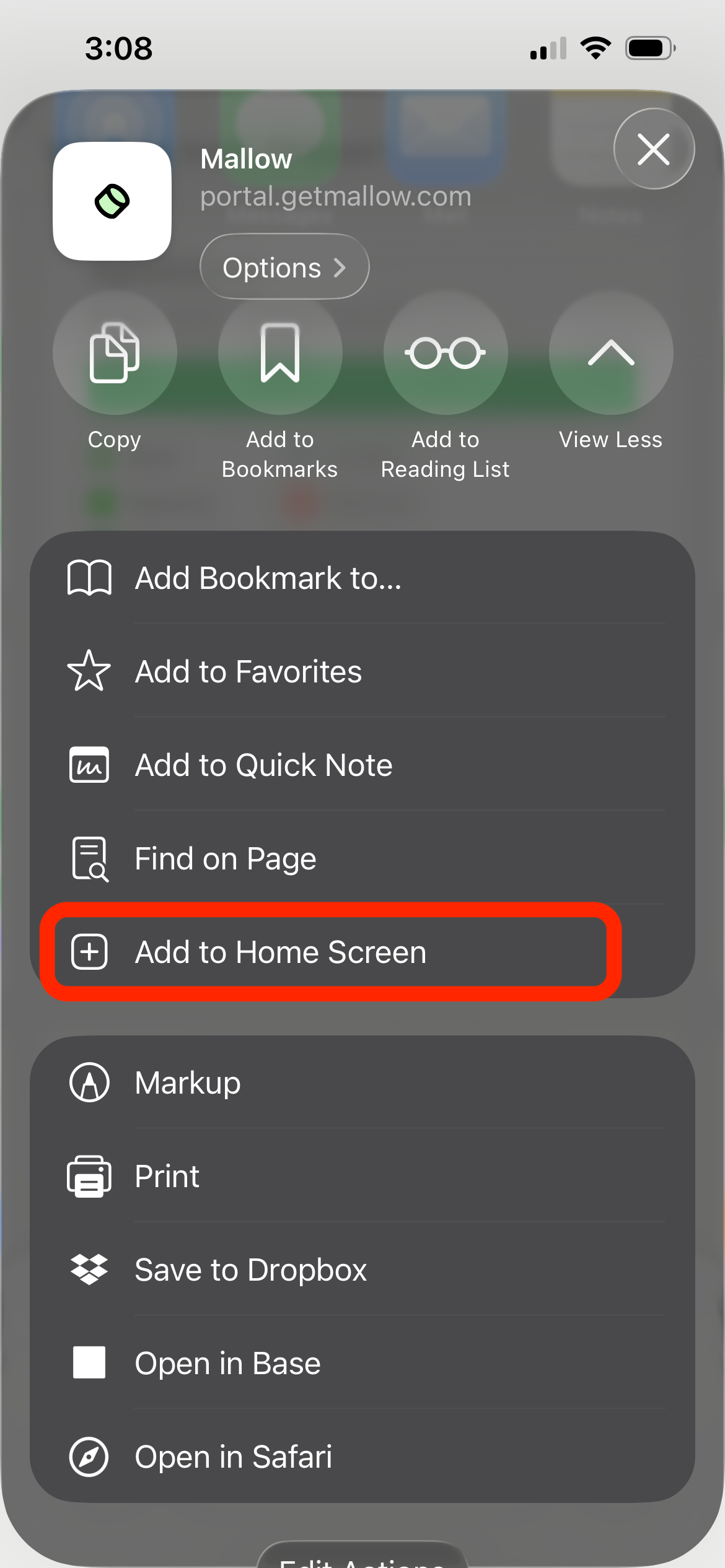
Scroll down and tap Add to Home Screen.
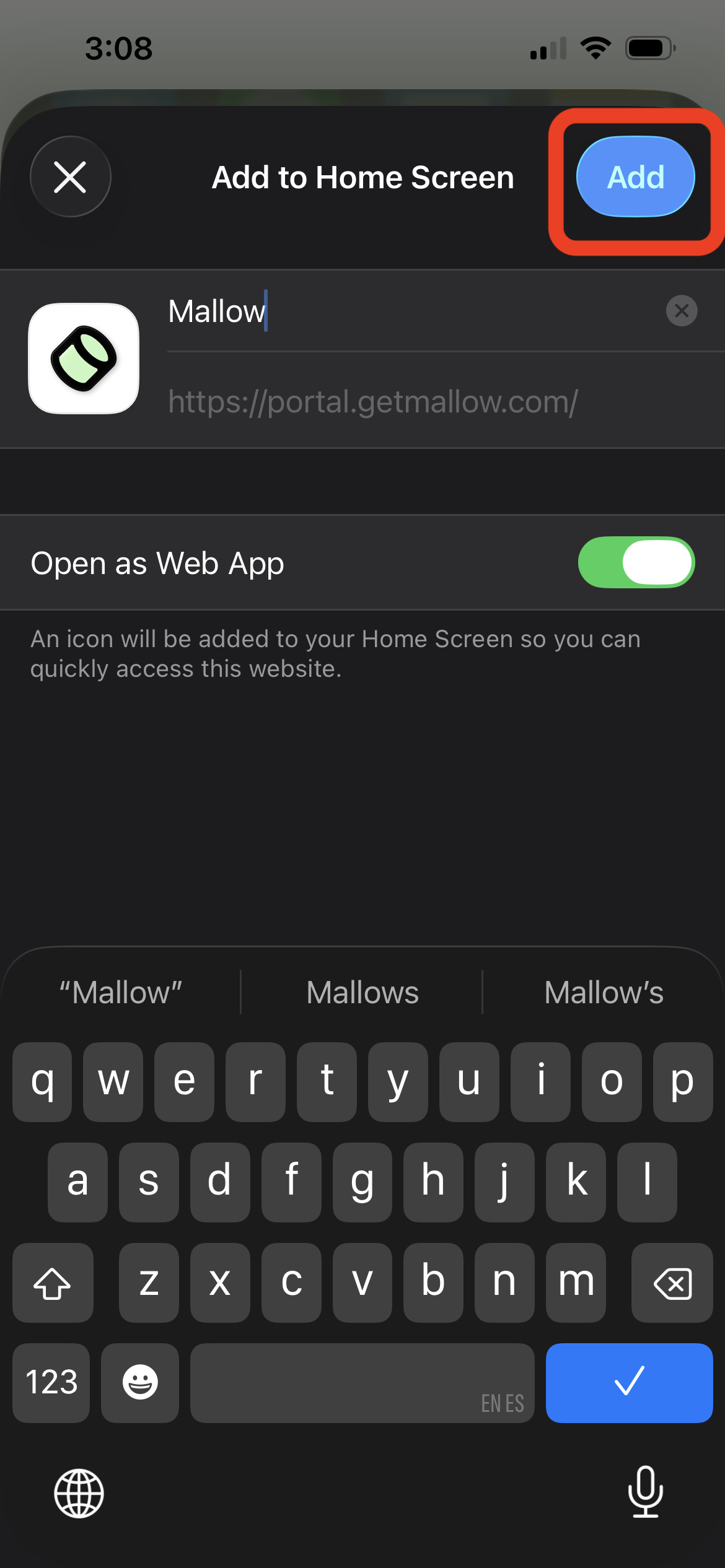
Tap Add in the top-right corner.
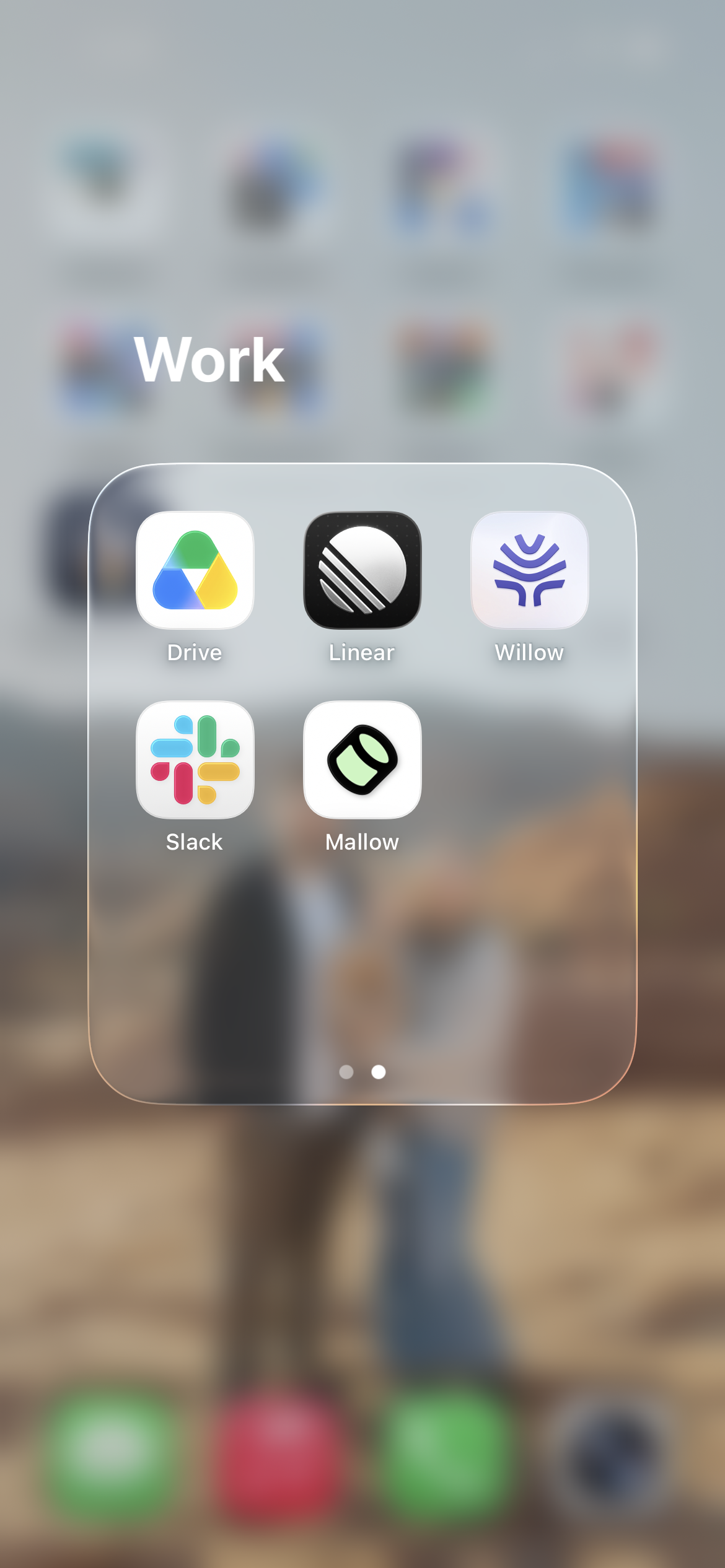
Done! Now you can access Mallow from your iPhone just like a regular app.
Add Mallow on Android
Open Mallow in Chrome.
Visit portal.getmallow.com to sign into your Mallow portal.
If you see an Add to Home Screen or Install banner at the bottom of the screen, tap it.
If no banner appears, tap the Chrome ellipsis menu (⋯) in the top-right corner and choose Install and create shortcut.
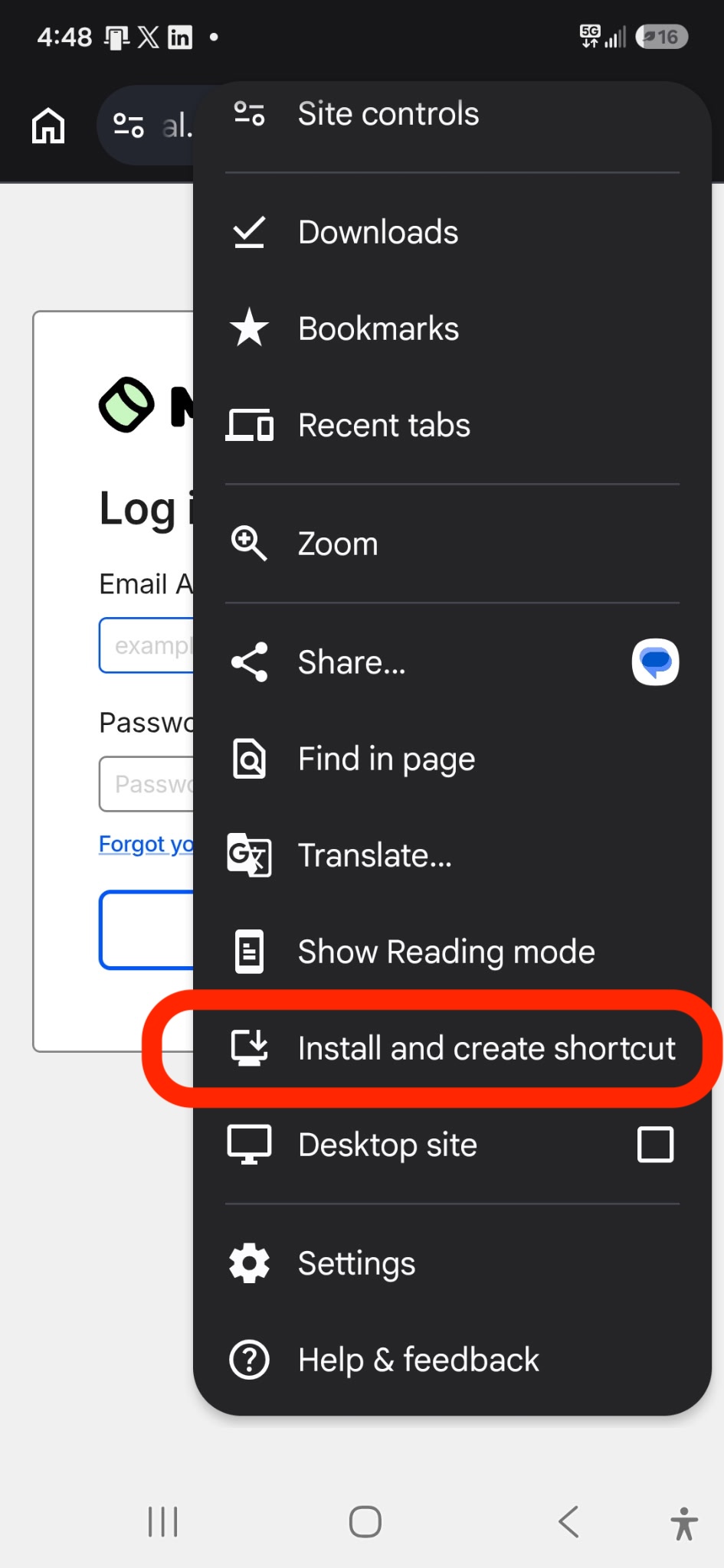
If the Install and create shortcut menu appears, select the Install option.
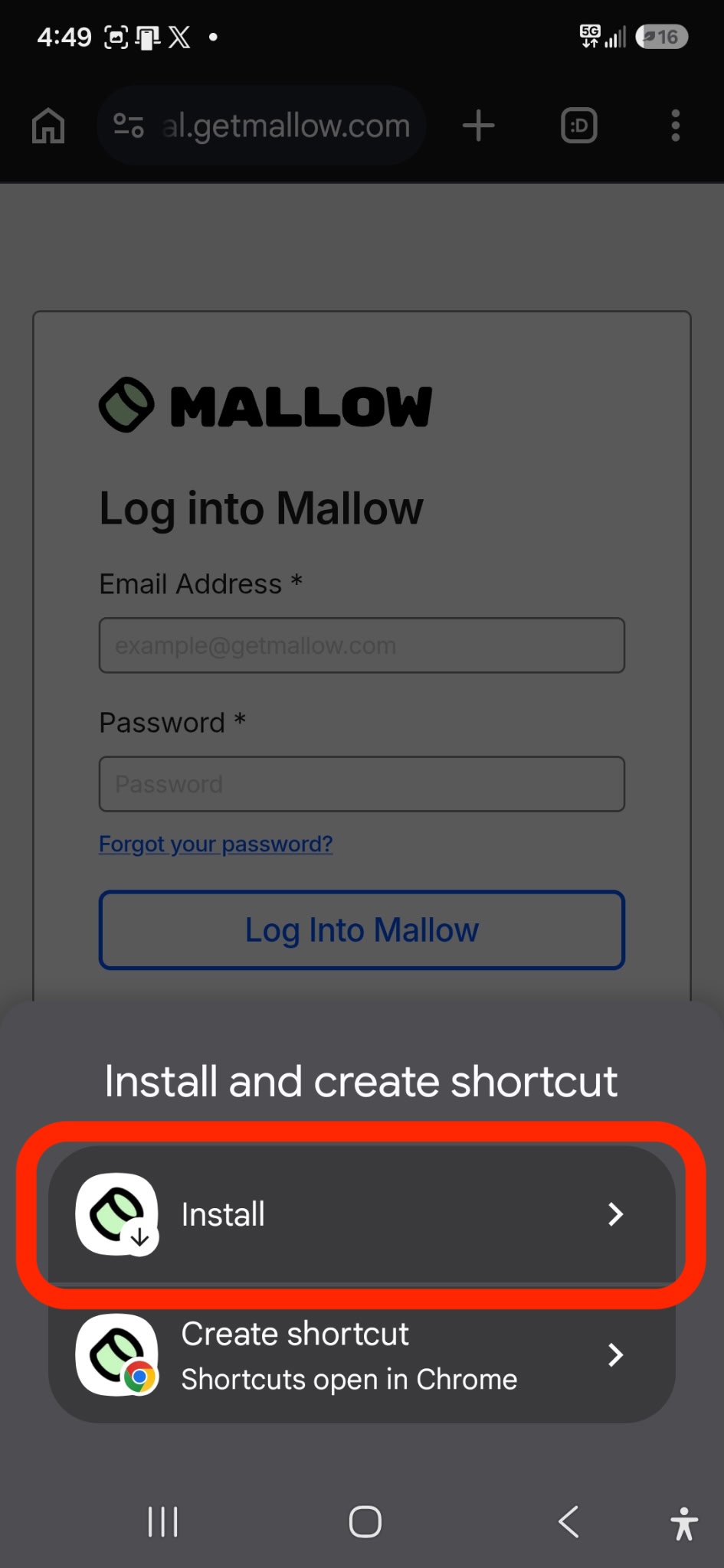
Confirm your install
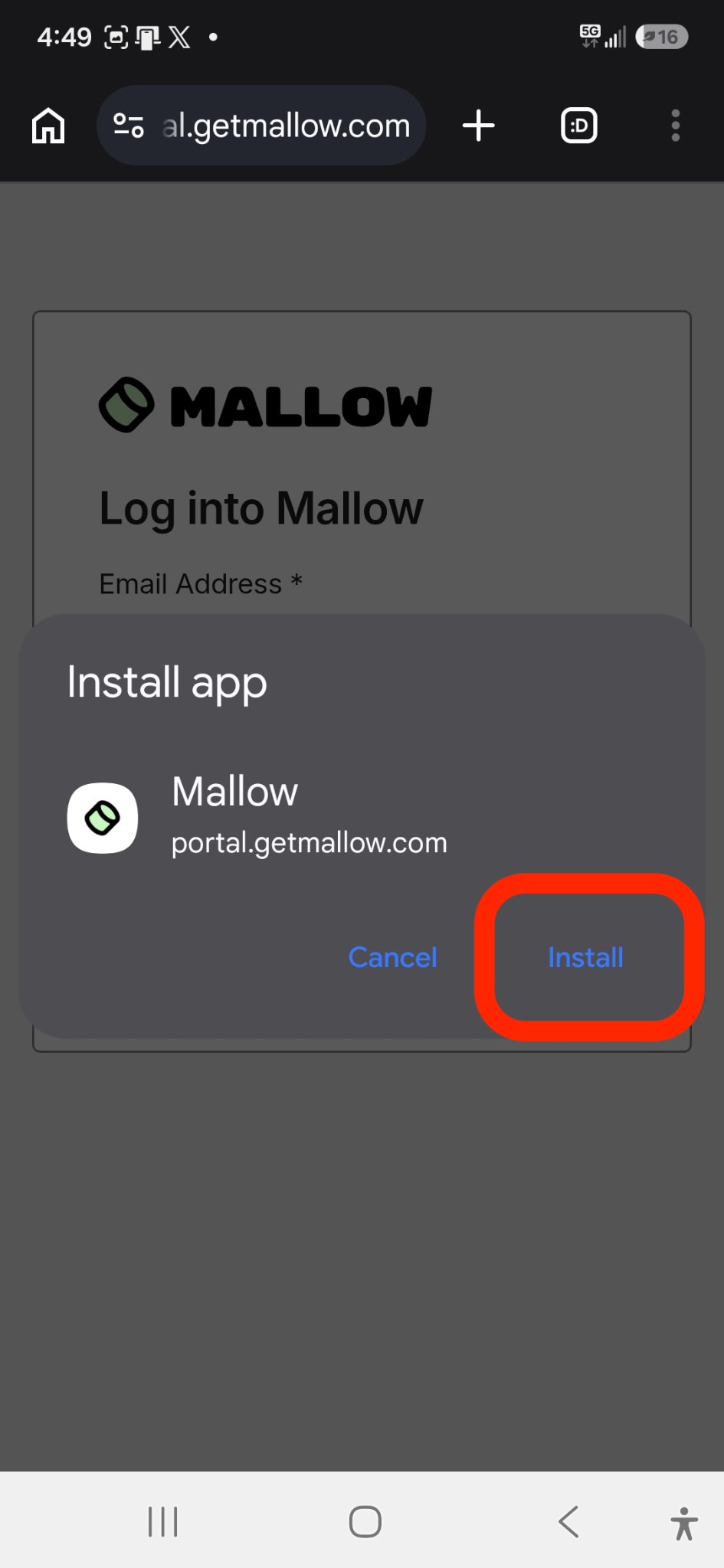
Done! Now you can access Mallow from your Android device just like a regular app.
The Mallow app icon will appear on your home screen or in your app drawer.
What to expect from the installed app
Standalone look: Mallow launches without browser toolbars, address bars, or tabs, so it operates like a native app.
Branded icon and title: The home-screen tile shows the Mallow icon and the title Mallow. On Android, the icon adapts to your device’s shape settings.
Same features: You sign in, create invoices, send contracts, and collect payments exactly as you do in the browser.
Updates happen automatically
Mallow updates in the background. You do not need to reinstall the app or download any updates – ever! Every time you open Mallow from your home screen, you get the latest version automatically.
Offline behavior
Mallow needs an internet connection to work. If you open the app while offline, you will see a simple offline screen that says you are offline and should reconnect. Most features, such as creating invoices or viewing payments, are not available without a connection.
Installing Mallow to your home screen is separate from using Mallow in a mobile browser. The mobile browser experience works the same way it always has, with a responsive layout and the bottom navigation bar. For details on moving around inside the app on mobile, see Navigate the Mallow portal on mobile.